Why Run AI on EC2 GPU Instances
AWS Bedrock handles most AI workloads without infrastructure management. But some scenarios require your own GPU instance:
- Running open-source models not available on Bedrock
- Fine-tuning models on proprietary data
- Serving models with custom inference pipelines
- Latency-sensitive applications needing dedicated capacity
- Cost optimization for high-volume inference (24/7 workloads)
The challenge is that AWS GPU instances are confusing. There are 6+ instance families, prices range from $0.50 to $32 per hour, and picking the wrong one wastes thousands of dollars per month.
This guide cuts through the confusion with real benchmarks and cost analysis.
Choosing the right EC2 GPU instance for AI saves hundreds of dollars per month
GPU Instance Families Explained
For AI Inference (Running Models)
| Instance | GPU | VRAM | vCPUs | RAM | On-Demand $/hr | Best For |
|---|---|---|---|---|---|---|
| g5.xlarge | A10G (1x) | 24GB | 4 | 16GB | $1.006 | Small models (7B-13B) |
| g5.2xlarge | A10G (1x) | 24GB | 8 | 32GB | $1.212 | Medium models, more CPU |
| g5.4xlarge | A10G (1x) | 24GB | 16 | 64GB | $1.624 | CPU-heavy preprocessing |
| g5.12xlarge | A10G (4x) | 96GB | 48 | 192GB | $5.672 | Large models (70B) |
| g6.xlarge | L4 (1x) | 24GB | 4 | 16GB | $0.805 | Best value for inference |
| inf2.xlarge | Inferentia2 | 32GB | 4 | 16GB | $0.758 | AWS-optimized inference |
For AI Training (Fine-Tuning)
| Instance | GPU | VRAM | On-Demand $/hr | Best For |
|---|---|---|---|---|
| p4d.24xlarge | A100 (8x) | 640GB | $32.77 | Full fine-tuning |
| p5.48xlarge | H100 (8x) | 640GB | $98.32 | Large-scale training |
| trn1.2xlarge | Trainium (1x) | 32GB | $1.34 | AWS-optimized training |
Rule of thumb: Use g5/g6 for inference, p4d/p5 for training, inf2/trn1 for AWS-optimized workloads.
Step 1: Choose Your Instance
Match the model to the GPU VRAM:
| Model Size | VRAM Needed (FP16) | VRAM Needed (Q4) | Recommended Instance |
|---|---|---|---|
| 7B params | 14GB | 4GB | g6.xlarge ($0.80/hr) |
| 13B params | 26GB | 8GB | g5.xlarge ($1.00/hr) |
| 34B params | 68GB | 20GB | g5.xlarge ($1.00/hr) Q4 only |
| 70B params | 140GB | 40GB | g5.12xlarge ($5.67/hr) |
Q4 quantization is the key. A 70B model in full precision needs 140GB VRAM (multiple GPUs). In Q4 quantization, it fits in 40GB — a single g5.12xlarge. Quality loss is minimal for inference.
Step 2: Launch the Instance
Using AWS CLI
# Launch g5.xlarge with Deep Learning AMI
aws ec2 run-instances \
  --image-id ami-0123456789abcdef0 \
  --instance-type g5.xlarge \
  --key-name your-key \
  --security-group-ids sg-0123456789abcdef0 \
  --subnet-id subnet-0123456789abcdef0 \
  --block-device-mappings '[{"DeviceName":"/dev/sda1","Ebs":{"VolumeSize":200,"VolumeType":"gp3"}}]' \
  --tag-specifications 'ResourceType=instance,Tags=[{Key=Name,Value=ai-inference},{Key=Environment,Value=dev}]'
Use the AWS Deep Learning AMI — it comes with NVIDIA drivers, CUDA, cuDNN, and Docker pre-installed. Saves hours of setup.
Using Terraform
resource "aws_instance" "ai_inference" {
  ami           = data.aws_ami.deep_learning.id
  instance_type = "g5.xlarge"
  key_name      = var.key_name
  subnet_id     = var.private_subnet_id

  vpc_security_group_ids = [aws_security_group.ai_inference.id]

  root_block_device {
    volume_size = 200
    volume_type = "gp3"
    throughput  = 250
  }

  tags = {
    Name        = "${var.project}-ai-inference"
    Environment = var.environment
    ManagedBy   = "terraform"
  }
}

data "aws_ami" "deep_learning" {
  most_recent = true
  owners      = ["amazon"]

  filter {
    name   = "name"
    values = ["Deep Learning AMI GPU PyTorch * (Ubuntu 22.04) *"]
  }
}
Step 3: Install Ollama and Load Models
SSH into the instance:
ssh -i your-key.pem ubuntu@<instance-ip>

# Install Ollama
curl -fsSL https://ollama.com/install.sh | sh

# Verify GPU is detected
nvidia-smi
ollama run --verbose llama3.1:8b "test"
You should see GPU utilization in nvidia-smi while the model runs.
Pull the models you need:
# For inference
ollama pull llama3.1:8b
ollama pull deepseek-r1:14b
ollama pull codellama:13b

# For heavy workloads (g5.12xlarge only)
ollama pull llama3.1:70b-instruct-q4_K_M
Step 4: Expose the API Securely
Never expose Ollama directly to the internet. Use an ALB or Nginx reverse proxy.
# /etc/nginx/sites-available/ollama
server {
    listen 443 ssl;
    server_name ai.internal.yourdomain.com;

    ssl_certificate /etc/ssl/certs/ai.pem;
    ssl_certificate_key /etc/ssl/private/ai.key;

    # Basic auth for API access
    auth_basic "AI API";
    auth_basic_user_file /etc/nginx/.htpasswd;

    location / {
        proxy_pass http://127.0.0.1:11434;
        proxy_set_header Host $host;
        proxy_read_timeout 300s;  # LLM responses can be slow
    }
}
For internal-only access, use a private subnet with no public IP and access via VPN or SSM Session Manager.
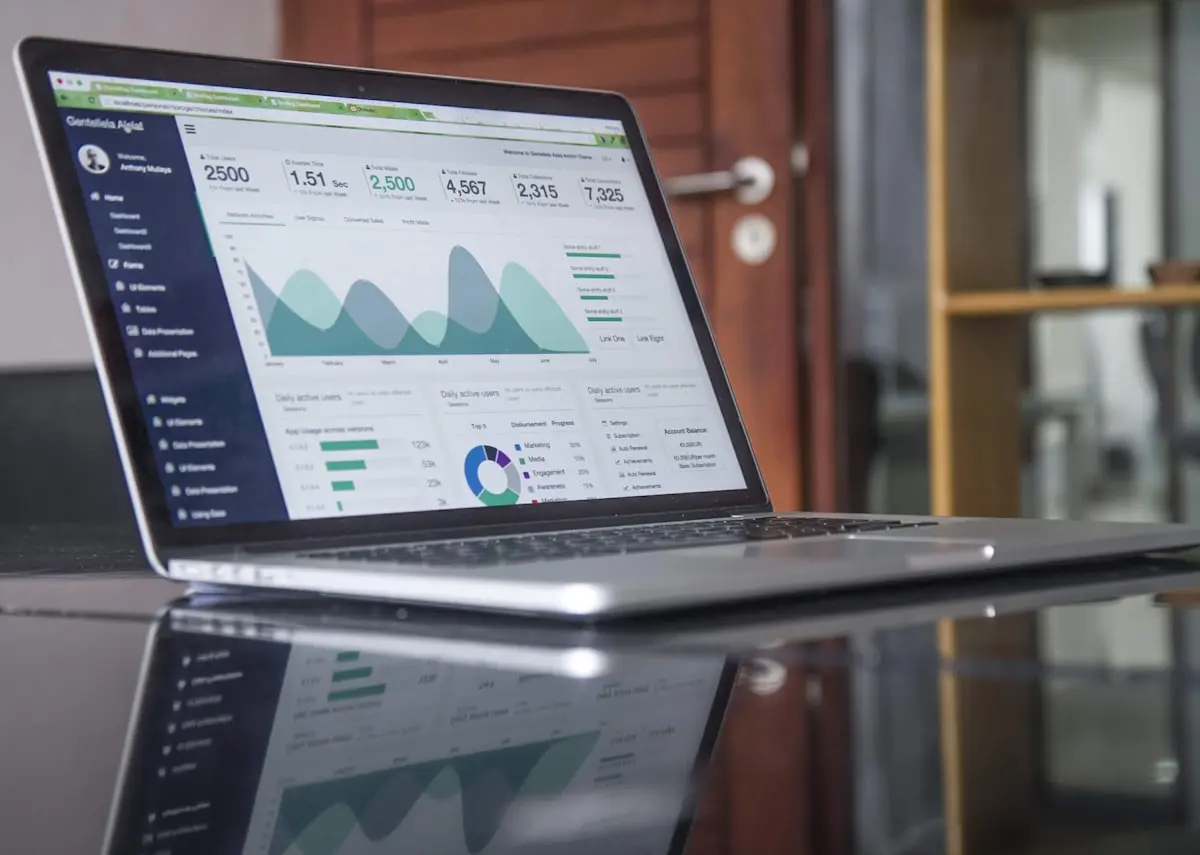 Monitor GPU utilization — an underutilized GPU means you are overpaying for your instance
Step 5: Cost Optimization
Use Spot Instances (Save 60-70%)
For non-critical inference (development, testing, batch processing):
aws ec2 request-spot-instances \
  --instance-count 1 \
  --type "persistent" \
  --launch-specification '{
    "ImageId": "ami-0123456789abcdef0",
    "InstanceType": "g5.xlarge",
    "KeyName": "your-key",
    "SecurityGroupIds": ["sg-xxx"],
    "SubnetId": "subnet-xxx"
  }'
Spot pricing for g5.xlarge fluctuates between $0.30-0.45/hr (vs $1.006 on-demand). That is $220-330/month instead of $734.
Warning: Spot instances can be interrupted with 2 minutes notice. Do not use for production inference serving real-time traffic.
Use Reserved Instances or Savings Plans (Save 30-40%)
For production workloads running 24/7:
| Term | g5.xlarge Monthly | Savings vs On-Demand |
|---|---|---|
| On-demand | $734 | - |
| 1-year RI (no upfront) | $467 | 36% |
| 1-year RI (all upfront) | $430 | 41% |
| 3-year RI (all upfront) | $277 | 62% |
A 1-year reserved g5.xlarge costs less than the cheapest on-demand alternative.
Schedule Start/Stop for Dev Instances
# Stop every night at 8 PM
aws ec2 stop-instances --instance-ids i-0123456789abcdef0

# Start every morning at 8 AM
aws ec2 start-instances --instance-ids i-0123456789abcdef0
Automate with AWS Instance Scheduler or a simple Lambda + EventBridge rule. Running a dev GPU instance only during business hours (12 hours/day, weekdays) cuts costs by 64%.
Right-Size Your Instance
Monitor GPU utilization:
nvidia-smi dmon -s u -d 60If GPU utilization is consistently below 30%, you are overprovisioned. Move down:
- g5.xlarge (24GB) to g6.xlarge (24GB) — same VRAM, 20% cheaper
- g5.12xlarge (4x GPU) to g5.xlarge (1x GPU) — if model fits in 24GB with quantization
Use Inferentia2 for High-Volume Inference
AWS Inferentia2 chips (inf2 instances) are purpose-built for inference and 40% cheaper than equivalent GPU instances for supported models:
# inf2.xlarge: $0.758/hr vs g5.xlarge: $1.006/hr
# 25% cheaper with similar performance for supported models
The limitation: models must be compiled for Inferentia using the Neuron SDK. Supported models include Llama, GPT-NeoX, and BERT variants. Not all HuggingFace models work out of the box.
Monthly Cost Summary
For running Llama 3.1 8B in production (24/7):
| Strategy | Instance | Monthly Cost |
|---|---|---|
| On-demand | g5.xlarge | $734 |
| On-demand | g6.xlarge | $588 |
| Spot | g5.xlarge | $220-330 |
| Reserved 1yr | g5.xlarge | $430 |
| Reserved 1yr | g6.xlarge | $350 |
| Inferentia2 | inf2.xlarge | $553 |
| Business hours only | g5.xlarge | $264 |
| Bedrock (comparison) | Llama via Bedrock | $13-53 |
Key insight: For light-to-medium usage, Bedrock is cheaper than running your own GPU instance. EC2 GPU instances make sense only for high-volume 24/7 workloads, custom models, or fine-tuning scenarios where Bedrock is not an option.
Monitoring and Alerts
Set up CloudWatch alarms for GPU instances:
# Alert if GPU utilization drops below 10% (wasting money)
aws cloudwatch put-metric-alarm \
  --alarm-name "ai-gpu-underutilized" \
  --namespace "CWAgent" \
  --metric-name "nvidia_gpu_utilization" \
  --statistic Average \
  --period 3600 \
  --threshold 10 \
  --comparison-operator LessThanThreshold \
  --evaluation-periods 6 \
  --alarm-actions arn:aws:sns:us-east-1:123456789:alerts
Install the CloudWatch agent with GPU metrics:
sudo /opt/aws/amazon-cloudwatch-agent/bin/amazon-cloudwatch-agent-ctl \
  -a fetch-config -m ec2 -s -c file:cw-agent-config.json
Key Takeaways
- Match model size to GPU VRAM — Q4 quantization lets you run larger models on smaller GPUs
- g6.xlarge is the best value for single-GPU inference in 2026
- Spot instances save 60-70% for non-critical workloads
- Schedule start/stop for dev instances — 64% savings for business-hours-only
- Monitor GPU utilization — below 30% means you are overpaying
- For light-to-medium usage, Bedrock is cheaper than maintaining your own GPU instance
- EC2 GPU is worth it for 24/7 high-volume inference, custom models, or fine-tuning
- Use the Deep Learning AMI — saves hours of driver and CUDA setup
FAQ
Do I need a GPU to run AI models on EC2?
Not always. CPU inference with quantized models works for light usage. A c6i.2xlarge (8 vCPU, 16GB) runs Llama 3.1 8B Q4 at ~5 tokens/sec for $0.34/hr. But for production inference with acceptable latency, GPU instances are necessary.
Which AWS region has the best GPU availability?
us-east-1 (Virginia) and us-west-2 (Oregon) have the most GPU capacity. Newer regions and smaller regions frequently have capacity shortages for g5 and p4d instances. If you cannot launch a GPU instance, try a different AZ or region.
Can I use EC2 GPU instances for fine-tuning?
Yes. p4d.24xlarge (8x A100) is the standard for fine-tuning 7B-13B models. For larger models, p5.48xlarge (8x H100). For budget fine-tuning, trn1 instances with AWS Trainium chips are 50% cheaper. SageMaker handles the orchestration if you prefer managed fine-tuning.
How do I handle instance interruption with Spot?
Use a Spot Fleet with mixed instance types and availability zones. Set up an interruption handler that saves model state and shifts traffic. For inference, run behind a load balancer with on-demand fallback instances.
Is Hetzner or bare-metal cheaper than EC2 for AI?
Significantly. A Hetzner AX102 (dedicated, AMD EPYC, 128GB RAM) costs approximately $85/month. Adding a rented GPU server with RTX 4090 costs $150-250/month. For 24/7 inference without AWS compliance requirements, dedicated servers are 3-5x cheaper than EC2 GPU instances.
Conclusion
Running AI models on EC2 GPU instances gives you full control over the inference stack — custom models, fine-tuning, and dedicated capacity. But that control comes with a cost that needs active management.
Pick the right instance family, use Spot or Reserved pricing, monitor GPU utilization, and stop dev instances after hours. The difference between a well-optimized and a default GPU deployment is hundreds of dollars per month.
For most DevOps teams, start with Bedrock or self-hosted Ollama on existing hardware. Graduate to EC2 GPU instances only when you hit the limits of those approaches.
Need help setting up GPU-accelerated AI infrastructure on AWS? View our AWS Infrastructure Setup service
Read next: How to Cut AWS Costs by 60%: A Complete Optimization Guide