
Your AWS Bill Is Too High — Here Is Why
Most AWS bills have 30–60% waste baked in. Not because engineers are careless — but because cloud resources accumulate, and visibility is hard to maintain without a deliberate process.
This guide covers a complete aws cost optimization framework used on a production e-learning platform serving 100,000+ concurrent users. The result was a 60% reduction in monthly AWS spend, achieved in four weeks without touching a single line of application code.
Every step here is repeatable on any AWS account.
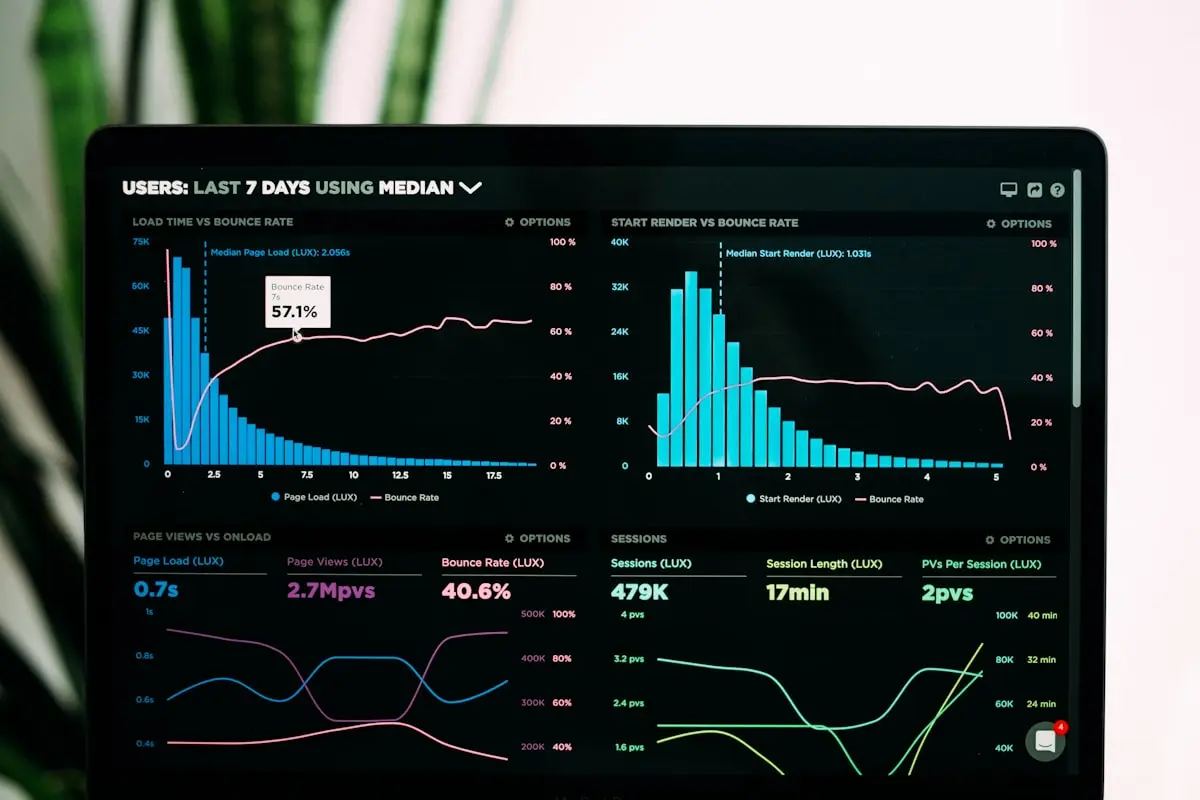 AWS Cost Explorer breaks down exactly where your money is going — start here before optimizing
Why AWS Bills Grow Without Anyone Noticing
AWS costs compound silently. An engineer spins up a development database and forgets to shut it down. A load balancer from a deprecated project keeps running. Snapshots accumulate for years. Static assets get served directly from S3 when CloudFront would be 80% cheaper.
None of these feel significant individually. Together, they routinely add up to hundreds or thousands of dollars per month in pure waste.
The solution is not to be more careful — it is to build a systematic process that catches waste automatically.
Step 1 — Get Visibility Before Touching Anything
The biggest mistake in cost optimization is making changes before understanding what is actually driving costs. Cut the wrong thing and you slow down production. Cut the right things and the bill drops significantly with no impact.
Enable these tools first:
AWS Cost Explorer — shows spending by service, region, and tag over time. Set up daily cost anomaly detection alerts immediately.
AWS Compute Optimizer — analyzes EC2, RDS, and Lambda usage patterns and gives specific rightsizing recommendations with confidence scores.
AWS Trusted Advisor — flags idle resources, unattached volumes, and underutilized instances automatically.
Cost allocation tags — without these, you cannot see which team or service is driving costs. Add tags to every resource before optimizing:
# Tag all EC2 instances with environment and team
aws ec2 create-tags \
  --resources i-1234567890abcdef0 \
  --tags Key=Environment,Value=prod Key=Team,Value=devops
Use these tag keys consistently: Environment (prod/staging/dev), Service (web/api/worker/db), Team (devops/backend/frontend).
Set a monthly budget alert at 80% threshold so surprises are caught early — not at month end.
Step 2 — EC2 Rightsizing
EC2 is usually the largest line item and the biggest opportunity for savings.
AWS Compute Optimizer analyzes two weeks of CloudWatch metrics and recommends instance size changes. In most production environments, 40–60% of instances are overprovisioned.
Common pattern: engineers size instances for peak load and never revisit. An m5.xlarge handling steady-state traffic at 15% CPU is paying for 85% of unused compute.
 Most EC2 instances run at under 20% CPU — rightsizing alone can cut compute costs in half
Actions to take:
Downsize overprovisioned application servers. Moving from m5.xlarge to m5.large cuts instance cost by 50% with no performance impact if CPU usage is consistently below 30%.
Switch development and staging environments to burstable T-class instances. A t3.medium handles development workloads fine and costs a fraction of an m5.large.
Use AWS Instance Scheduler to stop non-production instances after business hours. A dev environment running 24/7 when it is only used 10 hours a day is paying for 14 hours of waste per instance per day.
# Example: stop all instances tagged Environment=dev at 8PM
# Use AWS Instance Scheduler or EventBridge + Lambda for automation
Typical saving: 35–50% of EC2 bill
Step 3 — Reserved Instances for Stable Production Workloads
On-Demand pricing is convenient but expensive. For production workloads with predictable, steady-state usage, Reserved Instances (RIs) deliver 40–60% savings over On-Demand.
The math is straightforward: if a workload runs 24/7 with consistent resource requirements, a 1-year Reserved Instance pays for itself within months.
How to approach RI purchases:
- Run on On-Demand for at least 2 weeks and analyze actual usage patterns in Cost Explorer
- Purchase RIs only for instances that run continuously with stable sizing
- Use Convertible RIs if you expect instance type changes — they are slightly less discounted but allow flexibility
- Use Savings Plans instead of RIs if your workload spans multiple instance types — they are simpler to manage
Never buy RIs for: development environments, staging, or any workload that gets shut down regularly.
Typical saving: 40% on stable production resources
Step 4 — CloudFront for Static Content Delivery
Serving static content directly from S3 is expensive. S3 data transfer costs $0.09/GB outbound. CloudFront reduces this significantly and improves performance for global users.
Any e-learning platform, media site, or application with significant static assets should be behind CloudFront. The cost difference is dramatic:
- S3 direct: $0.09/GB data transfer
- CloudFront (first 10TB): $0.0085/GB data transfer
Setup is straightforward — create a CloudFront distribution pointing at the S3 origin, set appropriate cache TTLs, and update application URLs to use the CloudFront domain.
# Set long cache TTL for versioned static assets
# In CloudFront behavior settings:
# Default TTL: 86400 (1 day)
# Max TTL: 31536000 (1 year for versioned assets)
For assets with version hashes in the filename (bundle.a1b2c3d4.js), set TTL to one year. The hash changes when the file changes, so there is no stale cache risk.
Typical saving: 25–40% of data transfer costs
Step 5 — S3 Lifecycle Policies
S3 Standard storage costs $0.023/GB. S3 Infrequent Access costs $0.0125/GB. Glacier costs $0.004/GB. Most data older than 30 days does not need to be in Standard.
Run an S3 inventory to understand what is in each bucket. Common findings:
- Application logs from 2–3 years ago in Standard storage
- Old database backups never deleted
- Large media files that have not been accessed in months
Apply lifecycle rules to every bucket:
aws s3api put-bucket-lifecycle-configuration \
  --bucket your-bucket-name \
  --lifecycle-configuration '{
    "Rules": [{
      "ID": "auto-archive",
      "Status": "Enabled",
      "Transitions": [
        {"Days": 30, "StorageClass": "STANDARD_IA"},
        {"Days": 90, "StorageClass": "GLACIER"}
      ],
      "Expiration": {"Days": 365}
    }]
  }'
Adjust the expiration days based on your retention requirements. Logs can often be deleted after 90 days. Backups may need to be kept for compliance periods.
Typical saving: 30–50% of S3 storage bill
Step 6 — Eliminate Hidden Waste
Every AWS account accumulates idle resources that nobody tracks. Run this audit every quarter:
Unattached EBS volumes:
aws ec2 describe-volumes \
  --filters Name=status,Values=available \
  --query 'Volumes[*].[VolumeId,Size,CreateTime]' \
  --output table
Snapshot and delete anything not attached to a running instance.
Idle Elastic IPs:
aws ec2 describe-addresses \
  --query 'Addresses[?AssociationId==null].[PublicIp,AllocationId]'
Every unattached EIP costs $3.60/month. Release them.
Idle Load Balancers: Check ALB/NLB request counts in CloudWatch. Any load balancer with fewer than 100 requests in 7 days is a candidate for deletion.
Idle NAT Gateways: Each NAT Gateway costs ~$32/month plus data processing. Check CloudWatch BytesOutToDestination — anything near zero for 2+ weeks is waste.
Old CloudWatch Log Groups: Log groups with no retention policy store data forever. Set a 30–90 day retention on all log groups.
Typical saving: $200–500/month on a mid-size account
 The goal: costs trending down while performance stays the same or improves
Final Results
| Category | Saving |
|---|---|
| EC2 Rightsizing + Scheduling | 45% of EC2 bill |
| Reserved Instances | 40% of stable resources |
| CloudFront | 35% of data transfer |
| S3 Lifecycle Policies | 40% of S3 bill |
| Hidden Resource Cleanup | $200–500/month |
| Combined Total | ~60% overall reduction |
 That satisfying moment when the AWS bill drops 60% after a full optimization audit 💸
Key Takeaways
- Tag every resource before optimizing — visibility is the first step
- Rightsizing is the fastest, lowest-risk saving — start here
- Reserved Instances are worth it for stable production workloads running 24/7
- CloudFront pays for itself on any application with significant static assets
- Run a hidden resource audit every quarter — waste accumulates silently
- Cost optimization is a process, not a one-time project
FAQ
How much can I realistically save on AWS?
Most AWS accounts have 30–60% waste. The exact saving depends on how optimized the account is today. Accounts that have never been audited routinely see 40%+ savings from a first-pass optimization. Accounts already using RIs and proper tagging may see 15–25%.
What is EC2 rightsizing and how do I do it?
EC2 rightsizing means matching instance size to actual workload requirements. Use AWS Compute Optimizer to analyze CPU, memory, and network utilization over time. It gives specific recommendations — for example, “downgrade this m5.xlarge to m5.large, confidence: high.” Act on high-confidence recommendations first.
Are Reserved Instances worth it in 2026?
Yes, for stable production workloads. A 1-year RI saves 40% over On-Demand on the same instance type. The break-even point is roughly 5 months. If the workload runs predictably for 12 months, the saving is significant. Use AWS Savings Plans as an alternative if your instance types vary — they apply automatically across instance families.
How does CloudFront reduce AWS costs?
CloudFront caches content at edge locations close to users, reducing the number of requests that reach origin S3 or EC2. Data transfer from CloudFront costs significantly less than direct S3 transfer. For high-traffic applications, the saving on data transfer alone justifies the CloudFront cost.
What AWS tools help with cost optimization?
The main tools are: AWS Cost Explorer (spending analysis), AWS Compute Optimizer (rightsizing recommendations), AWS Trusted Advisor (idle resource detection), AWS Budgets (alerts and forecasting), and Cost Allocation Tags (attribution). All are available at no extra cost on most account types.
Conclusion
AWS cost optimization is not about being cheap — it is about paying for what you actually use. Every dollar saved on infrastructure is a dollar available for the product, the team, or the business.
The framework in this guide works on any scale. Start with visibility, move to rightsizing, then tackle RIs and storage. Run the hidden resource audit last. Budget two to four weeks for a full pass on a mid-size account.
Read next: 7 Hidden AWS Resources That Are Silently Draining Your Budget →
Want a professional AWS cost audit for your account? View our AWS Cost Optimization service →